Why Is My Website So Slow? 12 Common Causes + How to Fix Website Loading Speed Issues Fast
ByJames Price· Founder & CEO
18 min read
Every second your website takes to load costs you money. 47% of users abandon websites that take longer than 3 seconds to load, and Google penalizes slow sites in search rankings. If you're asking "why is my website so slow?" you're already experiencing a problem that's costing you customers and revenue. If you’re trying to figure out whether slow speed is the real issue or something else is dragging your site down, this guide to diagnosing website problems from SEO, design, speed, or messaging can help.
Most slow websites suffer from 3-5 simultaneous performance issues, not just one bottleneck. This guide identifies all 12 common causes of slow website loading and shows you exactly which problems to tackle first for immediate improvements.
A website is usually slow for several compounding reasons rather than one: oversized images, too many scripts and plugins, cheap shared hosting, no caching or CDN, and CSS and JavaScript that block rendering. Test the page in PageSpeed Insights and read the three Core Web Vitals together, because Google now scores them as a composite. Fix the largest image and the heaviest script first; on most sites those two changes produce most of the improvement.

Website speed directly impacts your bottom line, not just user experience metrics.
Amazon discovered that every 100ms of delay costs them 1% in sales. 53% of mobile users abandon checkout processes that take longer than 3 seconds to complete.
When someone searches for "emergency plumber near me," they're comparing 3-4 options rapidly. Mobile local searchers bounce from slow-loading sites within 3 seconds, immediately clicking your competitor's faster listing.
For businesses investing in PPC advertising, slow load times mean burning budget on clicks that never convert. A 50% bounce rate on a slow-loading landing page wastes half your ad budget before visitors see your offer.
Since Google's Core Web Vitals update in 2021, page speed has been a confirmed ranking factor. Mobile-first indexing means Google evaluates your mobile performance first, and 70% of searches happen on mobile devices where connections are slower.
A slow website ranks 1-3 positions lower than optimized competitors. The difference between position #3 and position #6 can mean 15 qualified leads per month versus 3.

Your hosting provider determines how quickly your server responds to visitor requests. Shared hosting plans, where hundreds of websites compete for resources, create unpredictable performance. When a neighboring site experiences a traffic spike, your site slows to a crawl.
Time to First Byte (TTFB) measures server response time. Anything over 600ms indicates a hosting problem. Budget shared hosting often shows TTFB of 1,200-2,000ms, meaning visitors wait two full seconds before your site begins loading.
Geographic distance also matters. If your server is in California but customers are in Florida, each request travels 2,500 miles before data flows back, adding 100-300ms of delay.
Quality managed hosting delivers TTFB under 400ms consistently. If yours exceeds 800ms during normal traffic, you're operating below acceptable standards.
Quick Fix: Test your server response time using PageSpeed Insights. If it consistently exceeds 600ms, upgrade to VPS hosting or cloud hosting solutions that deliver better performance.
Images account for 50-70% of total page weight on most websites. The most common mistake: uploading a 3000×2000 pixel product photo (3MB) and displaying it in a 300×200 pixel container. Your visitor's browser downloads the full 3MB but uses 10% of those pixels.
File format matters significantly. A PNG photo might be 2.5MB while the identical JPEG is 200KB, a 92% reduction with no visible quality difference. Modern WebP formats reduce file sizes an additional 30-40% compared to JPEG.
Image Optimization Specifications by Use Case:
Image Type | Dimensions | Quality | Target Size | Format |
Hero images | 1920×1080px | 80-85% | 150-250KB | JPEG/WebP |
Product photos | 800×800px | 75-80% | <100KB | JPEG/WebP |
Thumbnails | 300×300px | 70-75% | <30KB | JPEG/WebP |
Quick Fix: Use bulk compression tools (TinyPNG, ShortPixel) to compress existing images to <200KB each. Set maximum upload dimensions in your CMS: 1920px wide for hero images, 800px for product photos. Enable lazy loading so below-the-fold images load only when users scroll.
Without browser caching, your server regenerates your entire webpage from scratch for every visitor. Browser caching stores static assets (images, CSS, JavaScript) on visitors' devices. Returning customers with proper cache configuration load your site 70% faster because their browser uses stored versions instead of re-downloading everything.
Cache Configuration Standards:
Cache Type | Expiration | Purpose |
Browser cache (static assets) | 7-30 days | Images, CSS, JavaScript |
Browser cache (HTML) | 24 hours | HTML pages |
Server-side page cache | 6-12 hours | Static HTML versions |
Many slow WordPress sites have caching plugins installed but not configured properly. WooCommerce product pages with dynamic pricing often break page caching entirely.
Quick Fix: For WordPress, install WP Rocket or W3 Total Cache, then enable page cache and browser cache. Shopify users should add Booster: Page Speed Optimizer. WooCommerce sites need page caching plus object caching for database queries.
Expected improvement: 30-50% faster load times for returning visitors.
Every file on your page (each image, CSS file, JavaScript file, font, and tracking pixel) requires a separate HTTP request. A modern website makes 80-150 requests per page load. Each request adds overhead and creates opportunities for slowdown.
Common culprits include social media widgets (Facebook, Instagram, Twitter embeds each adding 8-12 requests), multiple analytics scripts, live chat tools, and third-party integrations. That innocent-looking Facebook "Like" button adds 400KB and 15 HTTP requests.
Render-blocking resources are particularly damaging. These CSS and JavaScript files must be downloaded and processed before the browser can display any content. Users stare at a blank white screen while 20 render-blocking scripts download sequentially.
Well-optimized websites limit total requests to 30-50 per page for optimal mobile performance. Critical rendering path should require no more than 6-8 requests before above-the-fold content displays.
Quick Fix: Audit your site with GTmetrix to identify all requests. Remove unused scripts (old Facebook Pixels from paused campaigns, inactive analytics trackers, social widgets you added years ago). Combine CSS files where possible. Use icon sprite sheets instead of loading 20 individual social media icons.
Each active plugin or app adds code that must load and execute. WordPress sites with 30+ active plugins often show load times of 6-8 seconds. The problem isn't necessarily the number, it's that most load their scripts on every page even when not needed.
Platform-Specific Performance Impact:
Platform | Common Issue | Delay Added |
Shopify | Apps are #1 slowdown culprit | 4-6 seconds with 15+ apps |
WooCommerce | Plugin conflicts create database query overhead | 500-800ms per problematic plugin |
WordPress | Page builders load entire framework on simple pages | 1-2 seconds added |
Each plugin should add no more than 100ms to total page load. If a single plugin adds more than 300ms consistently, it requires optimization or replacement.
Quick Fix: Deactivate plugins one-by-one while testing speed after each removal. Identify the slowest offenders. Find lightweight alternatives. Delete (don't just deactivate) unused plugins.
When your browser loads a webpage, it must download and parse all CSS and JavaScript before displaying content. This creates the "blank white screen" experience where visitors wait 2-3 seconds before seeing anything.
Critical rendering path delays occur when your site loads 15 stylesheet files and 20 JavaScript libraries sequentially. Your visitor's browser is capable of loading content but is artificially prevented from doing so.
Above-the-fold content should require no more than one inline CSS block (8-12KB maximum) and zero synchronous JavaScript. All non-critical CSS should load asynchronously. JavaScript libraries should use async or defer attributes.
Quick Fix: Use defer and async attributes on JavaScript tags. Inline critical CSS (styles for your header and hero section) directly in your HTML. Defer non-critical CSS using media queries or JavaScript. Most modern WordPress themes have options to defer JavaScript; enable these settings.
Developers write CSS and JavaScript with whitespace, comments, and descriptive variable names for readability. These elements serve no purpose in production code and add kilobytes of waste. Minification removes these elements, reducing file sizes by 30-60%.
Theme developers often include CSS for features you're not using. Your WordPress theme might load styles for 15 different header layouts when you're only using one. This "code bloat" accumulates over years.
Production CSS files should be minified and concatenated, reducing individual files by 40-60%. Total CSS for a business site should stay under 100KB minified, with JavaScript under 200KB before framework libraries.
Quick Fix: Use build tools or plugins to minify CSS and JavaScript. WP Rocket automatically minifies and combines files. Remove unused theme files. For custom-built sites, run code through minification tools before deployment.
When your server is in Texas but your visitor is in Germany, data must travel 5,000+ miles. This physical distance creates 200-400ms of unavoidable latency. A CDN solves this by caching your static assets on servers worldwide.
When someone in Australia visits your site, they download images from a Sydney-based CDN server instead of your Texas server. This reduces load time by 40-70% for international visitors.
Edge servers should deliver cached content with latency under 50ms to users within the same continent. CDN cache hit ratio should exceed 85%.
Quick Fix: Cloudflare offers a free CDN tier that works with any website. Shopify includes built-in CDN functionality. WordPress users should enable CDN plugins. Setup requires changing DNS settings but most providers offer step-by-step guides.
WordPress stores every draft, revision, spam comment, and transient data in your database. After two years, a WordPress site accumulates 50,000+ unnecessary database rows. Each post revision adds overhead, and complex queries searching through this bloat slow down page generation.
WooCommerce amplifies this problem. Product pages with variable options generate complex database queries. A product with 6 size options and 8 color options creates 48 variations the database must query.
Database Optimization Standards:
Optimization Type | Target | Benefit |
Post revisions | 5 maximum per post | Reduces database rows |
Query execution time | <50ms for standard pages | Faster page generation |
Transient data cleanup | Monthly, older than 30 days | Removes orphaned metadata |
Quick Fix: Use database cleanup plugins (WP-Optimize for WordPress). Limit post revisions to 3-5 in wp-config.php. Delete spam comments permanently. For WooCommerce stores, enable object caching through Redis or Memcached. Schedule monthly database optimization.
Each redirect adds 200-600ms of delay. Redirect chains create multiplication: HTTP to HTTPS (redirect #1) to www. version (redirect #2) to final URL (redirect #3) means 600-1,800ms wasted before your page starts loading.
Mobile-specific redirects often double this problem. Desktop URLs redirect to mobile URLs which redirect to HTTPS mobile URLs, creating 4-5 hops for mobile users.
Implement single-hop 301 redirects directly from old URLs to final destinations. Eliminate redirect chains exceeding 2 hops. Update internal links to point directly to final URLs, bypassing redirects entirely.
Quick Fix: Audit redirects using Screaming Frog SEO Spider. Update internal links to point directly to final URLs. Consolidate redirect rules. Fix broken internal links by updating or removing them.
Running WordPress 5.x when version 6.x is available means missing performance optimizations added over 18 months. Legacy code contains inefficiencies that newer versions have resolved.
Theme developers optimize code with each update. Using a theme version from 2021 means missing lazy loading improvements, code splitting optimizations, and modern image format support added in 2024 updates.
Always update in a staging environment first, testing all functionality before deploying to production. Create complete database and file backups. Review theme and plugin changelogs to identify breaking changes.
Quick Fix: Update in a staging environment first to test compatibility. Backup your site completely before changes. Check theme compatibility with the latest platform version. Update in sequence: platform first, then theme, then plugins. Schedule quarterly update reviews to stay current.
Web fonts add 100-300KB per font family. Loading 4 font families (regular, bold, italic, bold-italic for two typefaces) creates 1.2MB of font files.
Icon libraries like Font Awesome contain 1,500+ icons in a 900KB file. Most sites use 5-10 icons but load the entire library; that's 895KB of wasted bandwidth.
FOUT (Flash of Unstyled Text) occurs when content displays before fonts load, causing jarring layout shifts. Worse, some browsers hide text entirely until custom fonts load, creating blank pages for 1-2 seconds.
Limit custom fonts to 2 font families maximum with 2-3 weights each. Use font subsetting to load only Latin character ranges unless multilingual support is required. Implement font-display: swap to prevent invisible text. Total font weight should stay under 200KB.
Quick Fix: Use font subsetting to load only the characters you actually use. Google Fonts allows selecting specific character ranges. Switch to system fonts for body text; they load instantly. Use SVG sprites for icons instead of icon fonts.
Google's Core Web Vitals are three specific metrics that determine whether your site provides a good user experience. Sites failing these metrics face ranking penalties in search results.

LCP measures how long until the largest image or text block becomes visible. This represents when users perceive your page as "loaded."
Benchmarks:
Good: Under 2.5 seconds
Needs Improvement: 2.5-4 seconds
Poor: Over 4 seconds
LCP is most affected by slow servers, unoptimized images, and render-blocking resources. Preload your hero image using <link rel="preload"> tags. Serve hero images in WebP format with JPEG fallback. Ensure TTFB is under 600ms.

FID measures the time from a user's first click (on a button, link, or form field) until the browser can actually respond.
Benchmarks:
Good: Under 100ms
Needs Improvement: 100-300ms
Poor: Over 300ms
Heavy JavaScript execution blocks the main thread, preventing the browser from processing user input. Break long-running JavaScript tasks into smaller chunks. Defer non-critical JavaScript using async or defer attributes.
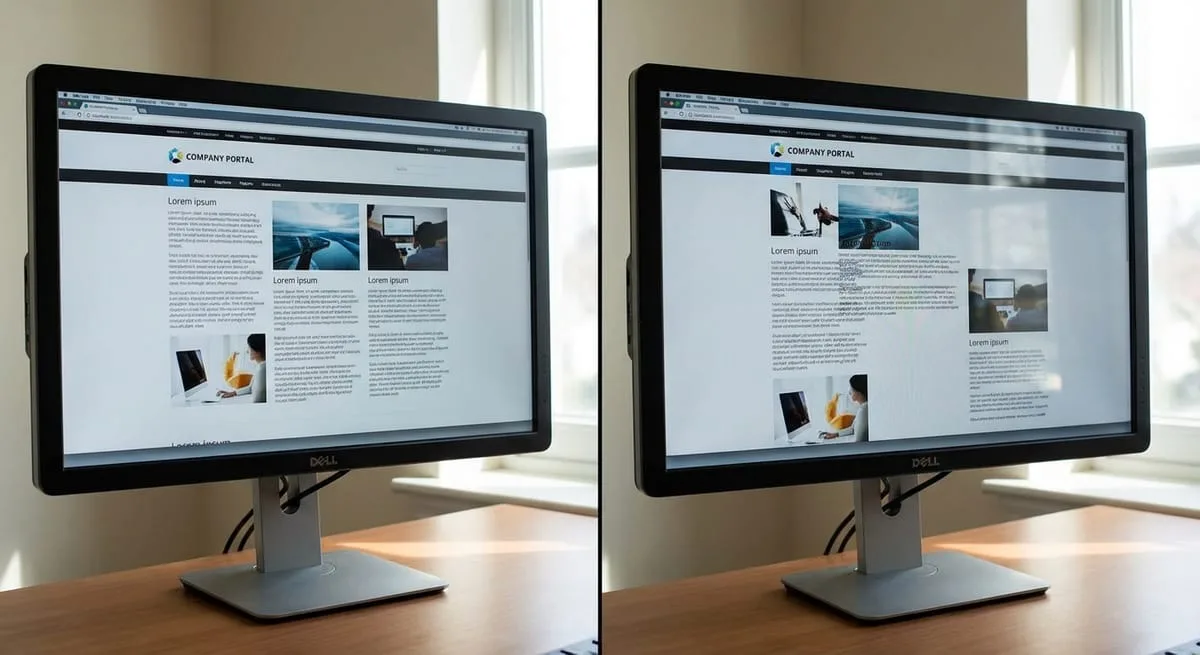
CLS measures unexpected layout movement. This happens when images load without defined dimensions, causing text to jump down the page.
Standards:
Good: Under 0.1
Needs Improvement: 0.1-0.25
Poor: Over 0.25
Set explicit width and height attributes on all images and video elements. Reserve space for ads using min-height CSS properties. Use font-display: optional to prevent layout shift when custom fonts load.
Google uses mobile-first indexing; your mobile site performance determines your rankings, not desktop performance. Mobile devices are 2-3x slower than desktop due to slower processors and network connections.
With 70% of web traffic coming from mobile devices, prioritizing mobile optimization directly impacts your revenue. Mobile sites should achieve LCP under 3 seconds on 4G connections. Mobile page weight should stay under 1.5MB total.
Not all speed fixes require developer expertise. Start with these high-impact optimizations you can implement this afternoon.
Images account for the majority of page weight. Compressing them delivers immediate, dramatic improvements.
Steps:
Download TinyPNG or install ShortPixel plugin
Compress all existing images (aim for <200KB per image)
Set maximum upload dimensions: 1920px wide for hero images, 800px for standard content
Enable lazy loading through your theme settings or plugin
Expected Improvement: 1-3 second reduction in load time
Difficulty: Easy (no coding required)
Caching serves stored versions of pages instead of generating them from scratch for each visitor.
Steps:
WordPress: Install WP Rocket or W3 Total Cache. Enable page cache and browser cache.
Shopify: Built-in caching is enabled. Add Booster: Page Speed Optimizer for extended browser cache.
WooCommerce: Same as WordPress, plus enable object caching.
Expected Improvement: 30-50% faster load times for returning visitors
Difficulty: Easy (one-click plugin setup)
Every active plugin adds code that must load. Many run on every page even when only needed on specific pages.
Steps:
List all active plugins/apps in your admin panel
Deactivate those not used in the last 30 days
Test your site functionality after each removal
Delete tracking scripts from paused marketing campaigns
Expected Improvement: 200-800ms depending on how many removed
Difficulty: Easy (requires testing but no technical skills)
Still Experiencing Slow Loading After Quick Wins? If you've implemented these three fixes and your site still scores below 50 on PageSpeed Insights, the issue likely requires professional diagnosis.
Your PageSpeed score is 50-70
Issues are primarily images, caching, or unused plugins
You have 4-8 hours to research and implement solutions
You're comfortable following technical tutorials
Your site runs on mainstream platforms (WordPress, Shopify, Wix)
Your PageSpeed score is below 40 consistently
Speed issues are costing revenue RIGHT NOW
You've tried quick fixes without meaningful improvement
Issues involve code-level problems (theme conflicts, custom functionality, database queries)
Your site is custom-built or runs on an enterprise platform
Initial speed audit and analysis requires 4-8 hours. Implementation of standard optimizations takes 8-15 hours. Complex fixes require 15-30 hours. Most sites see measurable improvements within 2-3 weeks.
Speed degrades progressively over time despite no changes
Load time varies wildly (2s one day, 8s the next)
Specific pages are extremely slow while others perform normally
Different speed test tools show contradictory results
Server errors or timeouts during traffic spikes
At Grindstone Design, we specialize in website speed optimization for Shopify, WooCommerce, and WordPress sites. Our certified experts have optimized websites across Florida and Georgia, with documented improvements averaging 2.8 seconds faster load times.
Schedule your free comprehensive website speed audit and receive a detailed analysis of your specific bottlenecks, prioritized fix recommendations, and timeline estimates within 48 hours.
What is considered a "slow" website in 2024?
Any website taking longer than 3 seconds to become interactive is considered slow. Google's Core Web Vitals provide specific targets: LCP under 2.5 seconds, FID under 100 milliseconds, and CLS under 0.1. Use PageSpeed Insights or GTmetrix to test your site. Scores below 50 indicate serious performance issues.
Can slow hosting really make my website that much slower?
Yes, hosting is often the single biggest factor in website speed. Shared hosting creates inconsistent load times, with TTFB often exceeding 1-2 seconds on budget hosting versus 200-400ms on quality managed hosting. Geographic server location also matters; a server 2,500 miles from your visitors adds 150-300ms of latency.
How long does it take to fix a slow website?
DIY quick fixes can improve speed by 30-40% in 2-3 hours. Comprehensive optimization takes 15-30 hours of professional work spread over 2-4 weeks. Timeline depends on problem complexity, platform, and current speed baseline.
Will a CDN alone fix my slow website?
A CDN solves geographic latency but doesn't address other slowdown causes. If your site is slow due to unoptimized images, excessive plugins, or poor hosting, a CDN provides minimal improvement. CDNs are most effective when combined with image compression, browser caching, and code minification.
Does website speed really affect Google rankings?
Yes, Google confirmed page speed as a ranking factor in 2018 and emphasized it further with the 2021 Core Web Vitals update. Studies show that improving from "poor" to "good" Core Web Vitals scores results in 1-3 position improvements in search results.
My website is fast on my computer but slow for customers. Why?
You're likely testing on a fast connection and desktop computer while most customers use mobile devices on slower connections. Your browser also caches your site after the first visit. Test using Google PageSpeed Insights or GTmetrix to simulate real-world mobile conditions.
Ready to Fix Your Slow Website? Grindstone Design offers comprehensive website maintenance services including speed optimization, security monitoring, and performance tracking.
Get your free website speed audit and discover exactly what's slowing your site down. We'll provide a prioritized roadmap of fixes and estimated timeline.
Discover more insights from our latest articles


